A friend asked me to help automate downloads from his Atomi Smart Dash Cam (4K Dual Lens, models AT032024 / AT2091 and similar). The camera records fine. Getting the clips off it is the tedious part: turn on WiFi at the camera, join its hotspot on your phone, open the Atomi Dash app, and tap through to download each clip by hand. Do that every day and it gets old fast.
So I built a small Python script that does the downloading for you. It lives in a public repo: github.com/ibenrodriguez/atomi-dashcam-downloader. This post explains how the camera works, why WiFi is the only practical path, and the three ways to automate it.
1. The manual way
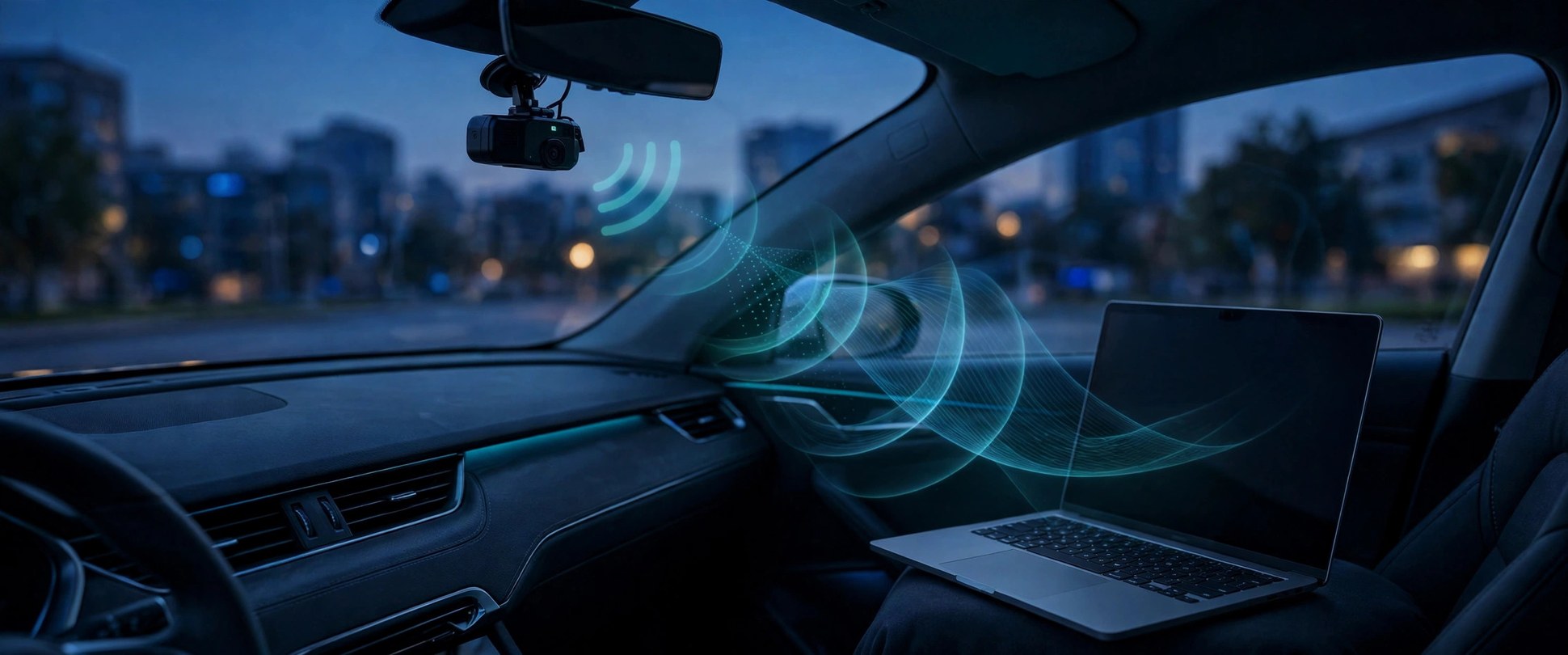
The official path is the Atomi Dash app on Android (package com.adse.atomi). The camera creates its own WiFi hotspot — WiFi is enabled on the camera itself, and the screen shows the hotspot SSID and password. The phone joins that hotspot, and the app downloads clips over it.
It works, but it is manual and the app is poorly rated. The hotspot connection is flaky, and every clip is a separate tap. If you want the videos on a computer, you download them to the phone first, then move them again. That is two manual steps for every clip.
Atomi publishes no HTTP API for the camera. There is no documented endpoint to list or fetch files. That means automation has to work the same way the app does: talk to the camera over its WiFi hotspot and find the file listing.
2. Why WiFi, not Bluetooth
The first question is usually Bluetooth. The answer is no. The Atomi specs list WiFi and USB only — there is no Bluetooth file transfer. And even if there were, video over Bluetooth is far too slow: a 3-minute 4K clip is roughly 500 MB to 1 GB. WiFi is the only wireless path that can move video at a usable speed.
WiFi also has a catch that shapes the whole setup: one WiFi adapter joins one network at a time. A Linux box near the car cannot be on the home WiFi and the dashcam hotspot at the same moment with a single adapter. The fix is either two adapters (or Ethernet plus WiFi), or time-multiplexing: join the hotspot, download, then rejoin home WiFi and sync. The script handles the time-multiplexing case with nmcli.
The dashcam WiFi still has to be on at the camera. That part does not change. If the camera is hardwired with parking mode, WiFi may stay available; otherwise enable it each time the car is on.
3. Three automation options
There are three ways to automate this, in order of preference.
Option 1: HTTP probe plus a script on the phone or a Linux box. If the camera serves a file listing over plain HTTP, a script can fetch it and download new clips. This is the cleanest path, and it is what the script in the repo tries first. It probes the common dashcam endpoints — DCIM paths, /api/list, Novatek CGI, Ambarella CGI, and generic JSON listings — and reports which ones answer with a file list.
Option 2: Tasker plus AutoInput driving the Atomi app. This automates the taps inside the official app on the Android phone. It works, but it is fragile: any app update that moves a button breaks the flow, and the phone has to be awake and unlocked at the right time.
Option 3: A dedicated downloader device near the car. A small Linux box (a Fedora machine, a Raspberry Pi, anything with Python and WiFi) sits within range of the parking spot, pulls clips from the camera, and syncs them to the phone or home server with Syncthing or rsync. This is the most set-and-forget option, and it is the one the script is built for.
4. The Python script
Python is the right language for this. It ships preinstalled on Fedora, has the best HTTP and file handling for glue scripts, and is easy to read and extend. Bash gets messy once you parse JSON or HTML listings and handle retries; a compiled language is overkill for a downloader.
The script is atomi_download.py in the public repo. It has three modes.
Probe mode is first, and it is read-only. It finds the camera via the WiFi gateway IP (or a --cam-ip you give it), then tries each candidate endpoint and prints which ones return a file list. It downloads nothing. Run this before anything else — it tells you whether your camera answers over plain HTTP at all.
python3 atomi_download.py --probeDownload mode pulls new clips into a destination directory (default ~/dashcam). It keeps a manifest (downloaded.json) and skips files it has already fetched, retries failed downloads up to three times, and handles .mp4, .mov, .avi, .jpg, .jpeg, and .thm files.
python3 atomi_download.py --dest ~/dashcamFull-auto mode adds WiFi switching with nmcli: join the dashcam hotspot, download, then rejoin home WiFi. Give it the SSIDs and let nmcli do the switching. Prefer the ATOMI_CAM_PASS environment variable over the command line so the hotspot password does not land in shell history.
python3 atomi_download.py --dest ~/dashcam \
  --cam-ssid ATOMI_DASH_XXXX --cam-pass <hotspot-password> \
  --home-ssid MyHomeWiFi
The script uses the requests library when it is available and falls back to urllib from the standard library when it is not, so it runs on a bare Fedora install.
5. Running it on a Linux box
The setup is a Fedora Linux machine within WiFi range of where the car parks. The machine needs Python 3.8 or newer (ships with Fedora) and NetworkManager's nmcli if you want the full-auto WiFi switching. No other dependencies are required.
The honest limit: if the probe finds no file list, the camera is not reachable over plain HTTP, and the fallback is the Atomi Dash app (or Waydroid, which runs the Android app on Linux). The probe tells you that in under a minute, before you invest in the rest of the setup. If the probe does find a listing, downloads are fully automatic from there — run the script on a schedule with cron or a systemd timer and the clips accumulate on their own.
Once the clips are on the Linux box, sync them wherever you want: Syncthing to the phone, rsync to a home server, or a cloud backup. The script only handles the camera-to-box leg; the box-to-everywhere-else leg is whatever sync tool you already use.
What to know
A few things to keep in mind before you set this up. The dashcam WiFi has to be on at the camera — the script cannot turn it on remotely. One WiFi adapter joins one network at a time, so plan for the time-multiplexing or a second adapter. The hotspot password is shown on the dashcam screen when WiFi is on; keep it in an environment variable or a config file, not on the command line. And Atomi publishes no API, so the probe is a best-effort search over common dashcam endpoints — if your camera answers on a different endpoint, add it to the probe list in the script and send it back.
The repo is public and MIT-licensed. If you get it working on your Atomi model, a note about which endpoint your camera answered on helps the next person.